Logs Snapshot Testing for Android Instrumentation Tests


Screenshot testing is currently an effective method to ensure that your Android application’s UI does not get broken. It simplifies the testing process by avoiding the need for complex assertions; instead, the UI output is captured and compared against a previously validated baseline.
Although snapshot testing is typically used for UI validation, it can also be applied to other types of non-visual output that are susceptible to validation, such as statistics or specific server request logs associated with any particular scenario.
As in UI screenshot testing, its main characteristics are:
- Baseline Creation:
Initially, a snapshot of the logs produced by a particular test scenario is taken and stored as a baseline. This snapshot represents the expected output for this scenario. - Automated Comparisons:
When changes are introduced in the code, the tests run again, and the current log output is captured. The new output is automatically compared against the baseline. - Developer Validation:
Any differences between the current output and the baseline are flagged. The developer reviews these changes to determine if they are intentional (in which case the new output becomes the updated baseline) or if they indicate a bug.
Loggerazzi
Loggerazzi is an open-source Gradle plugin and a library for Android instrumentation tests developed by us for this purpose. It requires minimum configuration and is easy to set up.
It works in two different modes: verification and recording.
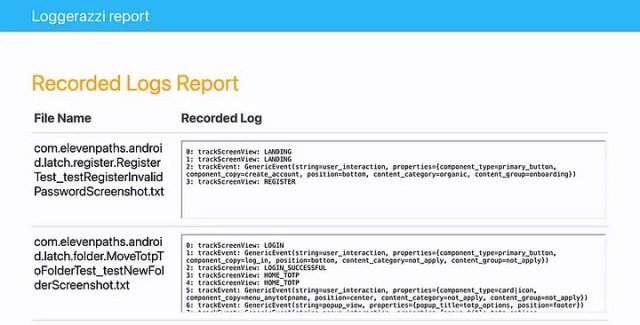
In verification mode, logs generated during test executions are compared to the previously generated baselines. Tests that do not match their respective baselines will fail; additionally, a general Loggerazzi report is produced at the end of the execution.

While in recording mode, logs generated during tests executions are used to update the current baselines; a general Loggerazzi report is generated in this case as well.
Characteristics:
- Compatible with other snapshot testing libraries, as it does not require specific Gradle tasks.
- Compatible with external instrumentation test runners.
- It has the same behavior when executing from the command line as from the IDE, as verifications always happen inside the emulator.
- Verification can be customized for specific needs.
- Emulator sharding/parallelization support.
- Multi-flavor support.
- Orchestrator support.
Setup
In your project’s build.gradle file, include the Loggerazzi plugin:
plugins {
    ...
    id "com.telefonica.loggerazzi-plugin" version "0.2.0" apply false
}
Apply the plugin in your library or applicationbuild.gradle:
plugins {
    id "com.telefonica.loggerazzi-plugin"
}
Also, include the rule dependency in your application or library dependencies block:
dependencies {
    ...
    androidTestImplementation "com.telefonica:loggerazzi:$loggerazzi_version"
}
Finally, add the Loggerazzi rule to your test class (or base instrumentation tests class to universally include all your existing application tests), where a logs recorded must be provided. This recorder can directly implement your logging interface.
open class BaseInstrumentationTest {
    @get:Rule
    val loggerazziRule: LoggerazziRule = LoggerazziRule(
        recorder = fakeAnalyticsTracker
    )
    ...
    companion object {
        val fakeAnalyticsTracker = object : YourAnalyticsTrackerInterface, LogsRecorder<String> {

            private val logs = mutableListOf<String>()

            override fun clear() {
                logs.clear()
            }
            override fun getRecordedLogs(): List<String> =
                logs.mapIndexed { index, s ->
                    "$index: $s"
                }

            override fun trackEvent(event: String) {
                logs.add("trackEvent: $event")
            }
        }
    }
}
Then, you just need to set it as your current tracker for your tests; if using Hilt it would be as simple as follows:
@Module
@TestInstallIn(
    components = [SingletonComponent::class],
    replaces = [YourAnalyticsAppModule::class],
)
class InstrumentationTestModule {
    @Provides
    @Singleton
    fun provideAnalyticsTracker(): YourAnalyticsTrackerInterface =
        BaseInstrumentationTest.fakeAnalyticsTracker
}
Finally, in order to run tests performing log verification, just invoke the regular Gradle target for your instrumentation tests. To switch to record mode, simply add the “record” instrumentation argument to the invocation, as in the example below:
./gradlew :app:connectedDebugAndroidTest -Pandroid.testInstrumentationRunnerArguments.record=true
For more information, please visit the Loggerazzi GitHub repository.
Related Content




Communication
Contact our communication department or requests additional material.