Generative AI applied to Design Systems


Large Language Models (LLMs) are a powerful tool for generating code, but they come with their own set of challenges. In this blog post, we’ll explore how LLMs can be applied to Design Systems to help developers and designers generate UIs efficiently.
Defining the goal
Our objective is to create a tool that generates UI code based on a textual description. The generated UI must be built using components from our Design System. In this example, we’ll use React components, but the same concept applies to other declarative UI frameworks. Ideally, we want something like this:
const code = generateUI('Create a login screen');
console.log(code);
The expected output should be JSX code that correctly implements a login screen using our Design System components, like this:
<ScreenLayout>
  <Navbar>Login</Navbar>
  <Form id="loginForm">
    <Stack space={16}>
      <TextField label="Email" name="email" />
      <PasswordField label="Password" name="password" />
    </Stack>
  </Form>
  <FixedFooter>
    <Button submit form="loginForm">
      Log in
    </Button>
  </FixedFooter>
</ScreenLayout>
While LLMs are quite proficient at generating React code due to their training on publicly available codebases, they do not inherently understand our specific Design System and its components. This means we must explicitly provide this information in the LLM input.
Connecting to an LLM
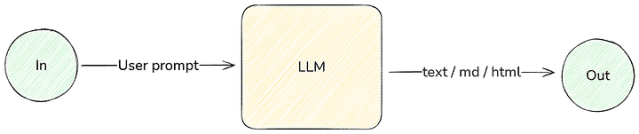
Let’s start with a simple script that connects to OpenAI’s API using Vercel’s AI SDK and prompts the model:
import {generateText} from 'ai';
import {openai} from '@ai-sdk/openai';

const model = openai('gpt-4o-mini');

const {text} = await generateText({
  model,
  prompt: 'Create a login screen',
});

console.log(text);
Now, let’s refine the prompt by adding information about our Design System components. Instead of passing a simple string prompt, we use a messages array. System messages are prioritized by the AI, making them a great place to define behavior and provide component details:
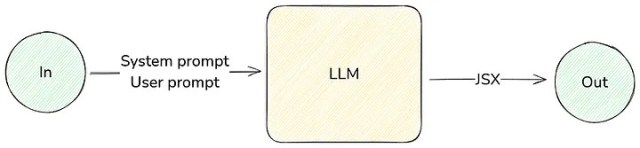
const {text} = await generateText({
  model,
  messages: [
    {
      role: 'system',
      content: `
            You are a helpful assistant that generates UIs using a Design System
            The Design System components are:
            - Button
            - TextField
            - PasswordField
            - Checkbox
            - ScreenLayout
            - Navbar
            - Form
            - FixedFooter
            - Stack
            `,
    },
    {
      role: 'user',
      content: 'Create a login screen',
    },
  ],
});
Improving Accuracy with Prompt Engineering
Even with this setup, the LLM might produce extraneous text alongside the JSX code or generate invalid component props. To mitigate these issues, we refine the system message:
You are a helpful assistant that generates UIs using a Design System.
Output should be only JSX code, in plain text, without markdown.
The Design System components and their allowed props are:
- Button: submit, form, onPress, children
- TextField: label, name, defaultValue, value, onChange
- PasswordField: label, name, defaultValue, value, onChange
- Checkbox: label, name, defaultChecked, checked, onChange
- ScreenLayout: children
- Navbar: children
- Form: id, onSubmit, children
- FixedFooter: children
- Stack: space, children
With a few simple changes we can have much better result. But we can go further.
Structured Output with JSON

A more robust approach is to instruct the LLM to generate structured JSON instead of raw JSX. This reduces errors and allows us to transform the output into JSX programmatically.
A UI can be represented as a JSON tree. For example:
{
  "component": "ScreenLayout",
  "props": {
    "children": [
      {"component": "Navbar", "props": {"children": "Login"}},
      {"component": "Form", "props": {"id": "loginForm", "children": []}}
    ]
  }
}
Vercel’s AI SDK has built in support for structured data with the generateObject function, which receives a schema that you can build using zod. But we are following a different approach here, we are still using generateText and passing a TypeScript definition to the LLM via prompt. The advantage of this approach over generateObject is that we’ll have finer control. For example, we can use the same TypeScript definition to validate the output of the LLM and find errors as we’ll see later on.
Let’s start by defining the TypeScript schema representing our example Design System:
type ComponentPropsMap = {
  Button: {
    submit?: boolean;
    form?: string;
    children: string;
  };
  TextField: {
    label: string;
    name: string;
    defaultValue?: string;
  };
  PasswordField: {
    label: string;
    name: string;
    defaultValue?: string;
  };
  Checkbox: {
    label: string;
    name: string;
    defaultChecked?: boolean;
  };
  ScreenLayout: {
    children: Array<Element>;
  };
  Navbar: {
    children: string;
  };
  Form: {
    id: string;
    children: Array<Element>;
  };
  FixedFooter: {
    children: Array<Element>;
  };
  Stack: {
    space: number;
    children: Array<Element>;
  };
};

type ComponentName = keyof ComponentPropsMap;

type Element = {
  [CN in ComponentName]: {component: CN; props: ComponentPropsMap[CN]};
}[ComponentName];
export type AiResponse = {component: string; props: unknown} & Element;
Then pass this definition as part of the system prompt:
const typeDefinition = readFileSync(path.join(__dirname, 'type-definition.ts'), 'utf-8');

const systemPrompt = `
You are a helpful assistant that generates UIs using a Design System.
Output should be only JSX code, in plain text, without markdown.
The generated UIs should use the components of a Design System.
Output should be a JSON object of type AiResponse, following this TypeScript definition:

${typeDefinition}
`;
Then we need to parse the JSON output:
const parseJSONResponse = (text: string) => {
  const jsonStart = text.indexOf('{');
  const jsonEnd = text.lastIndexOf('}');

  if (jsonStart === -1 || jsonEnd === -1) {
    return {success: false, error: 'Invalid JSON'} as const;
  }

  try {
    const jsonText = text.slice(jsonStart, jsonEnd + 1);
    const parsedJson = JSON.parse(jsonText) as AiResponse;
    return {success: true, data: parsedJson} as const;
  } catch (err) {
    return {success: false, error: 'Invalid JSON'} as const;
  }
};
The next step is to transform the JSON object into JSX code. But we’ll leave this task for the reader.
Implementing a Feedback Loop
With the prompt engineering we did, we can be quite confident that the LLM will generate the code we want, but it’s still a good chance that it will generate some invalid code. We can use the feedback loop technique to improve the results. We can verify the code generated by the LLM against our TypeScript definition and check if it’s valid. If it’s not, we provide the TypeScript error as feedback to the LLM and ask it to generate a new version of the code. We can do this in a loop until we get a valid code.
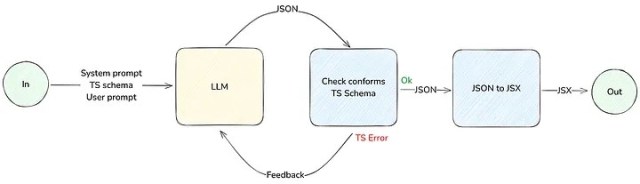
const generateUI = async (userPrompt: string) => {
  const messages: Array<{role: 'system' | 'user' | 'assistant'; content: string}> = [
    {
      role: 'system',
      content: systemPrompt,
    },
    {
      role: 'user',
      content: userPrompt,
    },
  ];

  let isValid = false;
  let retries = 3;

  while (!isValid && retries > 0) {
    const {text} = await generateText({model, messages});
    messages.push({
      role: 'assistant',
      content: text,
    });

    const parseResponse = parseJSONResponse(text);
    if (!parseResponse.success) {
      messages.push({
        role: 'user',
        content: 'The provided code is invalid JSON, please fix it',
      });
      retries--;
      continue;
    }

    const tsResponse = validateResponse(parseResponse.data, typeDefinition);
    if (!tsResponse.success) {
      messages.push({
        role: 'user',
        content: `The provided code has the following errors: ${tsResponse.error}`,
      });
      retries--;
      continue;
    }

    isValid = true;
  }

  if (isValid) {
    return {success: true, data: jsonToJsx(messages[messages.length - 1]?.content)};
  } else {
    return {success: false, error: 'Failed to generate valid code'};
  }
};

const ui = await generateUI('Create a login screen');
Enhancing Context with Documentation and Examples
To give the LLM more context about the Design System components, it’s a good idea to include a small documentation for component props.
type ComponentPropsMap = {
  Button: {
    /**
     * If true, the button will submit the form if it's inside one
     */
    submit?: boolean;
    /**
     * The id of the form the button should submit
     */
    form?: string;
    children: string;
  };

  // ...

  /**
   * Use this component to add vertical space between its children
   */
  Stack: {
    /**
     * The space between children
     */
    space: number;
    children: Array<Element>;
  };
};
You can also enforce the Design System restrictions in the type definitions. For example, if we want the vertical spacing to be a multiple of 8, we can do this:
type ComponentPropsMap = {
  // ...

  /**
   * Use this component to add vertical space between its children
   */
  Stack: {
    /**
     * The space between children
     */
    space: 8 | 16 | 24 | 32 | 40 | 48 | 56 | 64 | 72 | 80;
    children: Array<Element>;
  };
};
We can also include examples of how the components should be used:
type ComponentPropsMap = {
  /**
   * use Form component to group form elements
   *
   * @example
   * {
   *   component: 'Form',
   *   props: {
   *     id: 'myFormId',
   *     children: [
   *       {
   *         component: 'Stack',
   *         props: {
   *           space: 16,
   *           children: [
   *
   *             // Form fields here
   *
   *           ]
   *         }
   *       },
   *     ]
   *   }
   * }
   */
  Form: {
    id: string;
    children: Array<Element>;
  };
};
All this context will help optimizing LLM accuracy.
Advanced Techniques: Fine-Tuning and RAG
With the techniques we’ve seen so far, we can get pretty good results, but here are some ideas to improve:
- Retrieval-Augmented Generation (RAG): RAG combines the power of LLMs with the precision of search engines. By using RAG, you can search for examples of UIs built with your Design System and use them as input to the LLM, resulting in more accurate outputs.
- Fine-tuning the model: Fine-tuning allows you to create a new model based on an existing one, trained with a specific set of examples from your domain. If you have a dataset of UIs built with your Design System, you can fine-tune the LLM with it. This will align the LLM more closely with your Design System and improve the quality of the generated code. The advantage of fine-tuning is that it allows training on more examples than can fit in a prompt, reducing token usage and latency in subsequent requests to the fine-tuned model.
Bonus track: generate UIs using an image as input
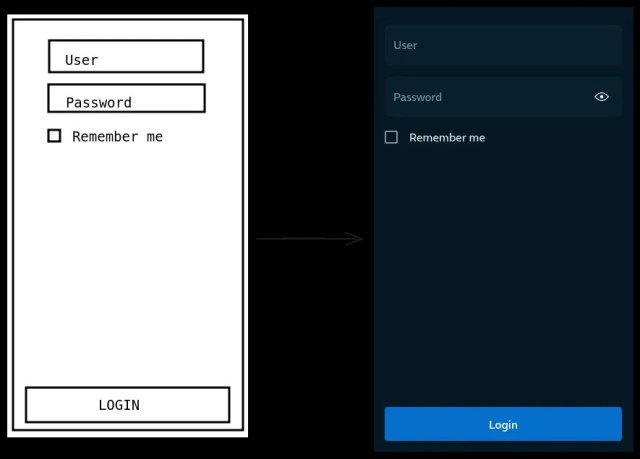
With multimodal LLMs, instead of using text as input (“create a login screen”), you can use an image. We only need a few changes in the prompt messages:
const messages = [
  {
    role: 'system',
    content: systemPrompt,
  },
  {
    role: 'user',
    content: [
      {type: 'text', text: 'Create a UI based on this image:'},
      {
        type: 'image',
        image: readFileSync(path.join(__dirname, 'login.png')),
      },
    ],
  },
];
Real World Example
In Telefónica, we are experimenting with all these techniques in our Design System (Mística). We are integrating it in our prototyping tools with pretty good results. Here are some examples:
Text prompt:
Build a streaming service platform called Movistar Plus+.
Show a list of movies, a list of shows, and a list to continue watching.
Add a Hero with a promoted show
Output code:

Rendered:

And using an image as prompt:
Conclusion
We’ve seen how LLMs can be leveraged to generate UIs that align with our Design System. While challenges exist, refining prompts, enforcing structured output, and implementing validation mechanisms can greatly improve reliability. Defining clear system messages, constraining outputs using TypeScript schemas, and iterating through feedback loops help keeps the generated code accurate and consistent. By applying these techniques, developers or designers can minimize manual fixes and spend more time crafting high-quality interfaces efficiently.
Related Content




Communication
Contact our communication department or requests additional material.